The Anime Realm
A watchlist, a manga shelf, airing reminders, watch parties, a drawing studio, and a curated Atlas of studios, titles and characters.
The Anime Realm is for keeping track of what you are watching and reading, finding out what is on, and watching it with other people.
Early access
Watchlist and manga shelf
Track shows you are watching, want to watch or have finished, and volumes you own or are following. Entries are private unless you make them public. A public entry appears in Discover with your name; members under 18 are only ever shown to their friends.
On a show's Atlas page, Start tracking adds it as Watching, and a row of episodes appears: press an episode to mark that you have watched up to it, press the last one again to step back, or use Mark episode N watched. While a show is airing, episodes that aren't out yet can't be marked. Plan to watch adds it without starting.
Manga lives in the Comics Atlas, next to every other series. When you add an entry, set the kind to Manga and the search looks there. Pick the series and your entry links to its page, where its volumes are listed. If you haven't set a total, the number of volumes the Atlas lists fills it. Each series can be on your shelf once.
Each entry keeps the date you started and the date you finished, filled in the first time you start watching and the first time you complete it; edit either if you remember differently. Going back to something you've finished? Set it to Rewatching: it starts again from episode 0, and finishing it adds one to the times you've rewatched it. A rewatch never hides any of a show's discussion from you, since you've seen it all.
A big library is searchable: search by title, filter by status, and sort by when you last updated it, title, score, progress, or when you started or finished it. Fifty titles show at a time, with Next page below. Select lets you tick several and set their status, mark them complete or remove them in one go. Discover has its own search for the community's public shelves.
Tags make lists. Give an entry tags in its edit form, such as favourites or winter-2027, up to 20 each. Every tag you use appears under Your lists at the top of the library; open one to see just those titles. Your tags and lists are private: nobody else sees them, even on an entry you've made public.
Scores your way. Choose Scores as at the top of the library: 5 stars, 10 points or 100 points. Every score is kept to the point, so an 8/10 imported from MyAnimeList shows as 8/10, 80/100 or four stars depending on your choice, and switching back and forth loses nothing. Reviews on a show's page stay at five stars.
Coming from MyAnimeList? Export your list there (.xml or .xml.gz) and choose it under Import or export your list in the library. You see what will be added and updated before anything changes, and nothing you already have is lowered or overwritten: if your library is further along than the file, it keeps your progress. Importing the same file twice adds nothing. Shows that match the Atlas link up; the rest come in as your own entries. You can export your list the same way, as MyAnimeList XML or as a CSV for a spreadsheet.
Airing reminders
Add a currently-airing title to your library as Watching or Plan to watch, linked to the Atlas, and you get told within the hour after each new episode is out, with the airing calendar showing the week ahead in your own timezone. A show's Atlas page says which episode is next, when it airs in your timezone, and how long there is to wait. The next episode, and every watch party you're going to, also appear on your calendar, and in Google Calendar or any calendar app if you subscribe to it. Opening a reminder takes you to the show with that episode ready to mark watched in one tap. Mute a show's reminders from its library card or its Atlas page without removing it. Reminders respect your notification settings.
Airing times come from a schedule our staff keep for each show, including the times on streaming services where they differ. If a time looks wrong, use Report a wrong time on the show's page and staff will check it.
Where to watch on a show's page lists the official streaming links our staff have checked, with their subtitle and dub languages. Links for the country on your account come first, and the rest are under Elsewhere. A broken, missing or wrong-country link can be reported from the same place.
Watch parties
A watch party is a scheduled time to watch something together and talk about it — the conversation lives here, the video does not. You bring your own subscription to whichever service is streaming it. Members get a reminder shortly before it starts. Follow a title on its Atlas page to hear when someone hosts a party for it.
Answer RSVP if you're going, or Interested if you might be. Only people going get the reminder. Both of you hear if the host moves the time, and an interested party shows on your calendar as a maybe. A host can set a number of spots, themselves included. Once it's full, nobody new can say they're going (there is no waitlist), but anyone can still be interested, and a spot opens if someone steps back.
A party can belong to one of your Circles. Use Host a watch party under Coming up on the Circle's page, or pick the Circle in the form. It then appears in the Circle's Coming up and on its calendar. In a private Circle only members can see it, RSVP or hear about it. If your Circle posts to Discord and its Lead has turned on watch parties, new parties and an hour-before reminder are posted there too, without the watch link.
The Atlas
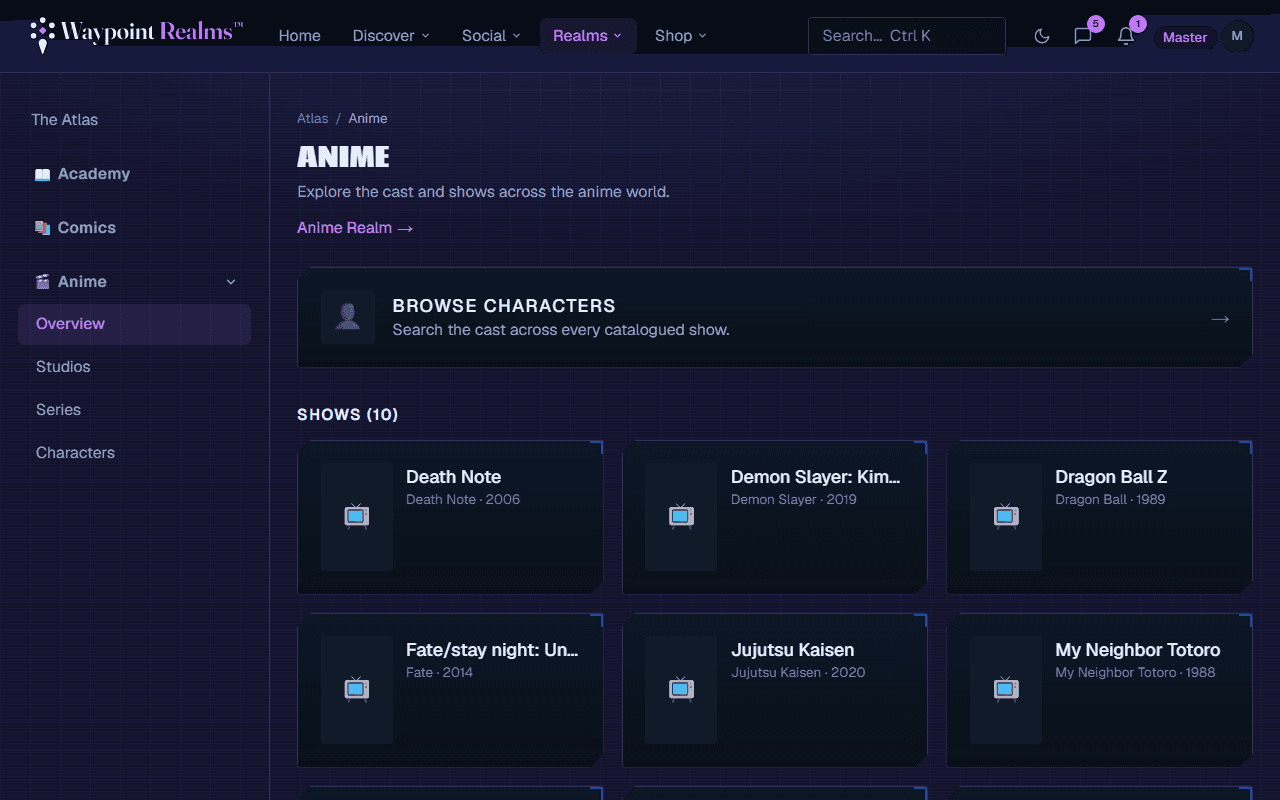
The Anime Atlas is curated: franchise → title, with studio credits on each title, plus a character index. It is readable signed-out, so a search for a show can land someone directly on it. Imported details credit and link to their source. A franchise based on a manga, light novel or comic says so and links to it in the Comics Atlas. A show's page lists its genres, its crew and its voice cast; each genre and each person has a page of their own, and you can follow a voice actor.
Can't find a show? Add it to your library anyway and we'll ask for it to be added. The same happens for anything a MyAnimeList import couldn't match. Once it's in the Atlas your entry links to it by itself, picks up its episode count and airing reminders, and you get a notification. Manga is the exception: it lives in the Comics Atlas.
Each show can be rated and reviewed. If your review gives something away, tick Contains spoilers: its text stays hidden behind a click, so someone who hasn't caught up can read the score without the twist. The same box is there on comics and games reviews.
The Studio
The Anime Studio is for making the art rather than collecting it. Start on a blank canvas or bring in a drawing you already have, work in layers, crop and adjust it, and ink on top with the brush.
Your pieces are private while you work — nobody else can open them, and nothing leaves the Studio until you say so. When one is finished you have two ways out: Save a copy puts a PNG on your own device, and Share to Gallery posts it to the Art Gallery, where you say what it is of — a title, a character, or an original of your own.
To find art in the gallery, search its captions and tags, or choose the title, character or tag under a piece to see everything else posted with it. Older art is a page away, below the grid. Tags are kept in lower case, so Frieren and frieren are one tag. A title's page links to all of its art in the gallery.
To hear about new art, follow a title or a character from its Atlas page, or follow the artist. You get one notice a day at most, however many pieces are posted. A character's page has its own art, and you can post yours there too.
If you take commissions, turn on Open for commissions in your profile settings and add one link to your VGen or Ko-fi page. A badge shows on your profile and on your art in the gallery. Waypoint takes no cut and adds nothing to the link. Commissions are for adult members.
Your hands, your art
Deleting a piece is not final: it moves to Recently deleted on the shelf, where it can be restored for 30 days. After that it and its source files are cleaned up for good, so save a copy to your own device for anything you want to keep.
Cel
Cel is for making things move. It works the way animation has always been planned: an exposure sheet along the bottom, one row per layer, showing which drawing is on screen and how long it is held. Draw on a frame and a drawing appears there, held for two frames — shot on twos, like most hand-drawn animation. Drag a drawing along the sheet to retime it, or drag its trailing edge to hold it longer.
Onion skinning shows the drawing before and the drawing after as coloured ghosts, so you can see what you are drawing between. It follows drawings rather than frames: on twos, the previous frame is usually the same picture, and what you actually want to see is the previous drawing.
Every mark is one you made
Getting a scene out of Cel
Four ways, because they are for four different things:
- Animated PNG — the scene as one picture that plays, in full colour with transparency intact. This is also what Share posts to the Art Gallery.
- PNG sequence — numbered stills with an
xsheet.jsonbeside them, for taking into an editor or compositor without hand-retiming it at the far end. - Cel package — the whole scene: the sheet, the layers, every drawing and how it was made. Open package on the shelf brings one back, on any machine and into any account. Your work is yours and it travels.
- Exposure sheet — the paper sheet as a PDF, frames down the page, for the desk beside you.
Shared scenes are screened before they appear, and for an animation that means frames from across the whole thing rather than just the first one.
Deleting a scene is not final: it moves to Recently deleted on the shelf and can be restored for 30 days, after which its drawings are cleaned up for good. Export a package for anything you want to keep.
Discussion
Each title has its own discussion thread, attached to the title rather than scattered across a general feed. A post can be tagged with an episode, and a tagged post only reaches people who have watched that far: if your library says you are on episode 2, a post about episode 9 is not shown to you at all — not blurred, simply not sent — and it appears the moment you mark episode 9 watched. The thread tells you how many posts are waiting further on.
Every episode that has aired also has its own room, listed under Episodes on the show's page: just the posts about that episode, and a 1–5 rating. A room opens once you've marked its episode watched, and its average rating is only shown to people who have — so a score can't hint at what's coming. When a new episode comes out and you're caught up to the one before, the reminder says marking it watched opens its room.
Untagged posts reach everyone, including people who don't track the show. You can only tag an episode you have marked watched yourself, and the Spoiler checkbox stays for things an episode number can't catch, such as manga spoilers in an anime thread. General only narrows the thread to untagged posts.
You can reply to a post (replies stay one level deep, and a reply sits under its post's episode, so it's hidden from the same people), react to it, and report it if it breaks the rules. You can edit or delete your own posts; an edited post says so. The author of a post hears about replies to it. Posts by someone you've blocked, or who has blocked you, don't appear.
Read the manga or light novel? Tick I've read the source on the show's page and a Source material section opens in its discussion and rooms, collapsed, for talk about the source ahead of the anime. Only people who have ticked it see those posts or can write them, so anime-only viewers never run into them. Untick it and they go away again. If you want a standing group instead of a thread, make a circle.
Still stuck? Browse all help or contact us. To report someone or something, use the report action on the relevant profile, post, or session — it sends us the context automatically.