Fit Forge: resizing an STL to your body
Somebody else modelled that helmet on somebody else's head. Upload the STL, pick what it is, and Fit Forge scales it to your measurements in your browser.
Most cosplay STLs on the internet were modelled on the maker's own head, or on nobody in particular. Fit Forge takes one of those files and scales it to your measurements before you spend forty hours of printer time on it.
Using it
Say what the piece is
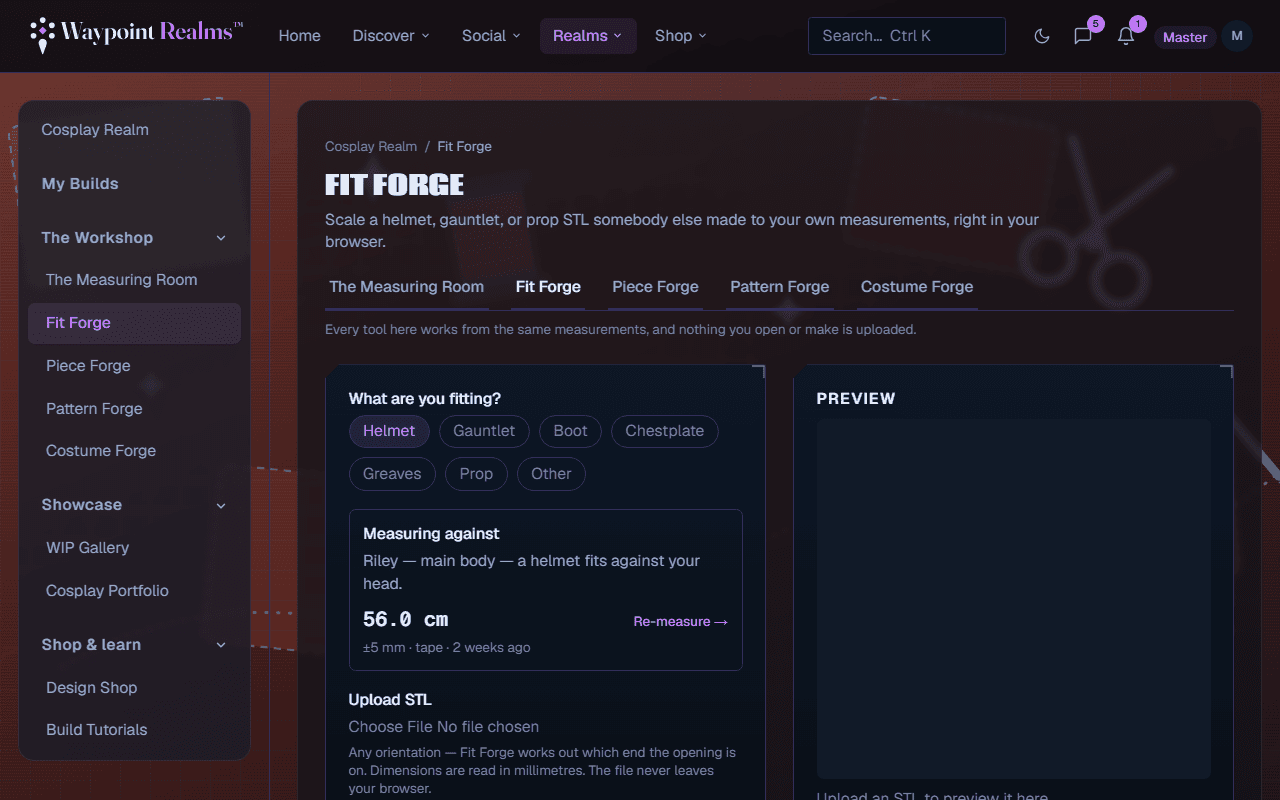
Helmet, gauntlet, boot, chestplate, greaves, prop or other. This is not a label — it is how the forge knows which measurement has to clear. A helmet is fitted against your head circumference, a gauntlet against your forearm, a chestplate against your chest, boots and greaves against your calf. A prop or other piece has no body measurement, so you type the circumference you want.Check the body it is measuring against
The card names the profile, the measurement that piece needs, how sure it is, how it was taken and how old it is, and warns when it is older than you asked to be reminded about. If the measurement is missing it says not measured, and Measure it → takes you to the Measuring Room and back. With no profile, type a target instead.Upload the STL
Binary STL only for now — an ASCII STL, an OBJ or a 3MF isn't read yet. Any orientation; dimensions are read in millimetres. Fit Forge tells you roughly what circumference the file fits as it is.Check the fit axis
Fit Forge works out which axis the piece is worn along and which end the opening is on, and says what it detected. If it is unsure it says so. Pick X, Y or Z yourself, or flip which end the opening is at, whenever the reading looks wrong.Set the fit
The target circumference starts from your measurement. Fit band is how much of the model scales: low, and only the rim around the opening resizes while detail further in stays put; at 100% the whole model scales. It starts at 60%. Wearing clearance is the gap between the shell and you — padding, a wig, or room to move — from 0 to 50 mm, starting at 2 mm.Preview and download
Preview scaled shows the piece upright, with a mannequin from your profile for scale (the Body box hides it), and says what percentage of the file's size it is scaling to. Switch between Original and Scaled, and orbit or zoom to check it. Changing any setting clears the scaled preview, and download waits until you preview again, so the file you save is always the one you last looked at. Download scaled STL saves it for your slicer.
The file never leaves your browser
Scaling is not the same as fitting
Recent fits
Every download is listed under Recent fits: what the piece was, the file name, the scale as a percentage, the target, the fit band, the clearance and the date. They are the settings to make the same fit again — not a copy of the file.
Attaching a fit to a build
Attach to a build component is optional. Pick a piece from one of your builds, or add a new one with + New piece on a build. Arriving from Fit › on a build picks the piece for you. After you download, the build lists the fit against that piece.
Costing the print
On Plus and Pro, the Live BOM prices the piece: choose a material and set the infill and wall thickness (or the cutting waste, for sheet materials), and it estimates the cost of the original and the scaled model from the mesh itself. It is a planning figure, not a supplier quote. With a build piece attached, downloading also sets that piece's estimate. Scaling, previewing and downloading are open to everyone.
If you are making the piece from scratch
Fit Forge resizes a model somebody else made. To model one yourself — and unfold it into foam templates — use Piece Forge instead.
Still stuck? Browse all help or contact us. To report someone or something, use the report action on the relevant profile, post, or session — it sends us the context automatically.